

- Docs
- Calling
- Calls Page
Calls Page
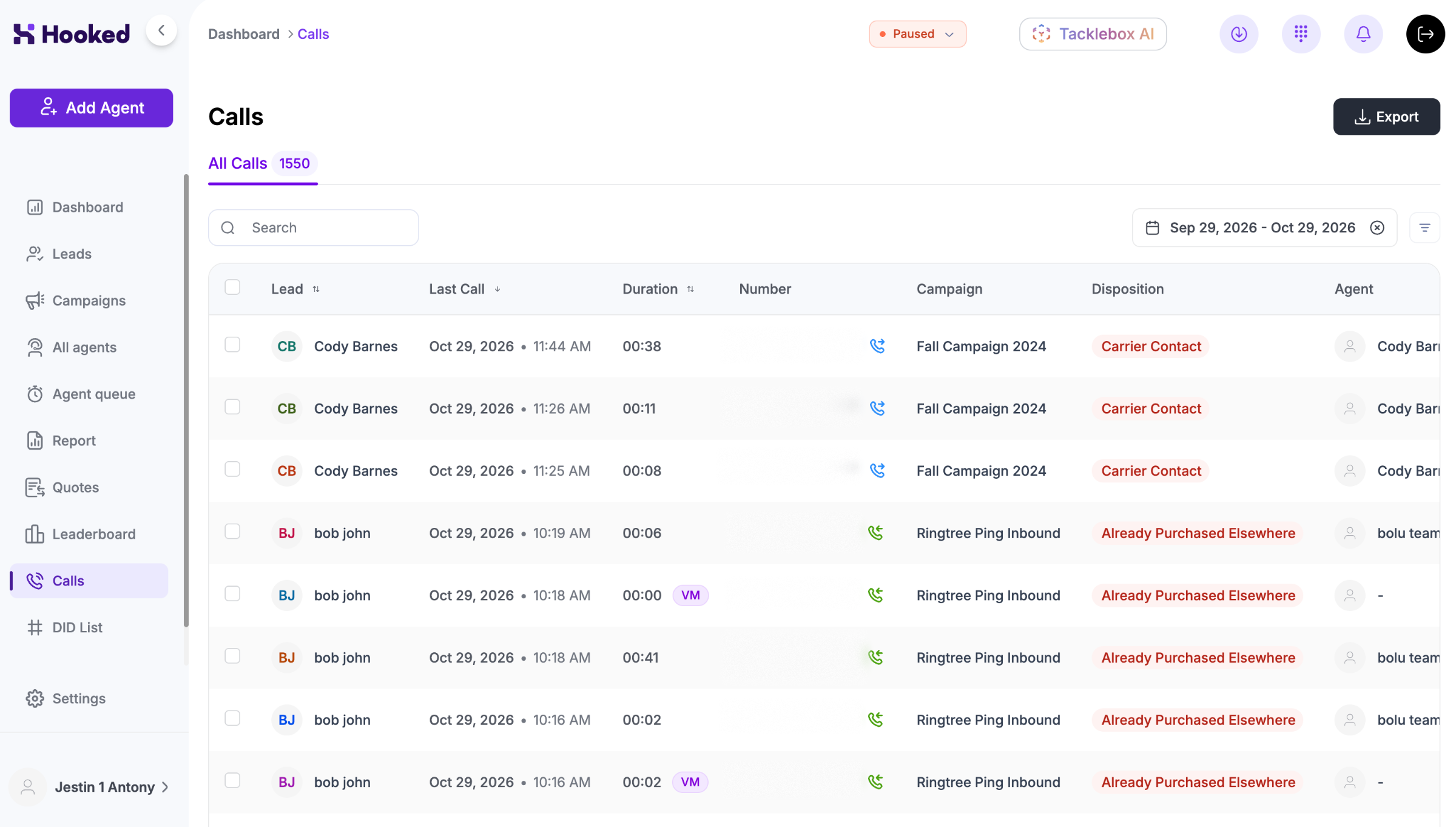
Overview
The Calls Page shows your call history through Hooked. Here’s how you can navigate the page and find the calls you’re interested in. You can get to the Calls Page by clicking on Calls on the navigation bar on the left-hand side of the Hooked app.
Navigating the Calls Page
By default, the Calls Page will display the leads you’ve contacted within the last month. It will also provide you with the basic information for each lead:
Name: The name of the lead
Last Call: The last time you had contact with the lead via phone
Duration: How long the call lasted. It will also display if the lead left a voicemail
Number: Client’s phone number
Campaign: States where the lead came from
Disposition: How you left the call and where they are in your workflow
Agent: The agent assigned to the lead
Actions: The next action the agent needs to take
By clicking on the column name, you can reorder your calls in that order. These can be ordered in ascending or descending order by clicking on the column multiple times.
Filtering Your Calls
There are a few ways to filter through your calls: editing the current filters and adjusting the dates.
You can adjust the display by clicking on Filter on the top right of the chart. You can rearrange the order of the chart and omit the ones you aren’t focusing on.
By clicking Dates next to Filter, you can adjust the leads by when they were contacted. We’ve also provided presets to quickly update the display.
Exporting the Call History
If you need to evaluate your calls through a separate program, you can download your call history by clicking on the Export button at the top right of the page. This will import a .CSV file to your device.
Calling Leads from the Calls Page
You can quickly call your leads through the Calls Page by clicking on the Phone Icon under the Actions column.
For more information, review the Making Calls Support Page.
Listening & Downloading Recordings
Through the Calls Page, you can listen to your previous calls and download them to your computer by utilizing the “Actions” column.
By clicking on the Wavelength Icon, you can listen to the recording that corresponds to that row. The recording will automatically start playing via a pop-up menu that appears at the top right of the screen. This pop-up will show the call’s timeline, a Pause Button, the agent who took the call, the date the call took place, and the lead’s name.
Interacting with the call timeline will jump you to that section of the conversation, and the Pause Button will pause the recording and replace it with the Play Button. Clicking the Play Button will resume the recording.
You can download the call recording by clicking the Download Icon under the “Actions” column. This will download a .wav file to your device.
Searching for Calls
If you’re seeking a specific call, you can use the search bar located on the top left of the page. Through the Search Bar, you can type your desired keyword, and every call related to the keyword will be displayed.
The search feature will pull calls related to the Lead, Number, and Agent fields.