

- Docs
- Calling
- Making Calls
Making Calls
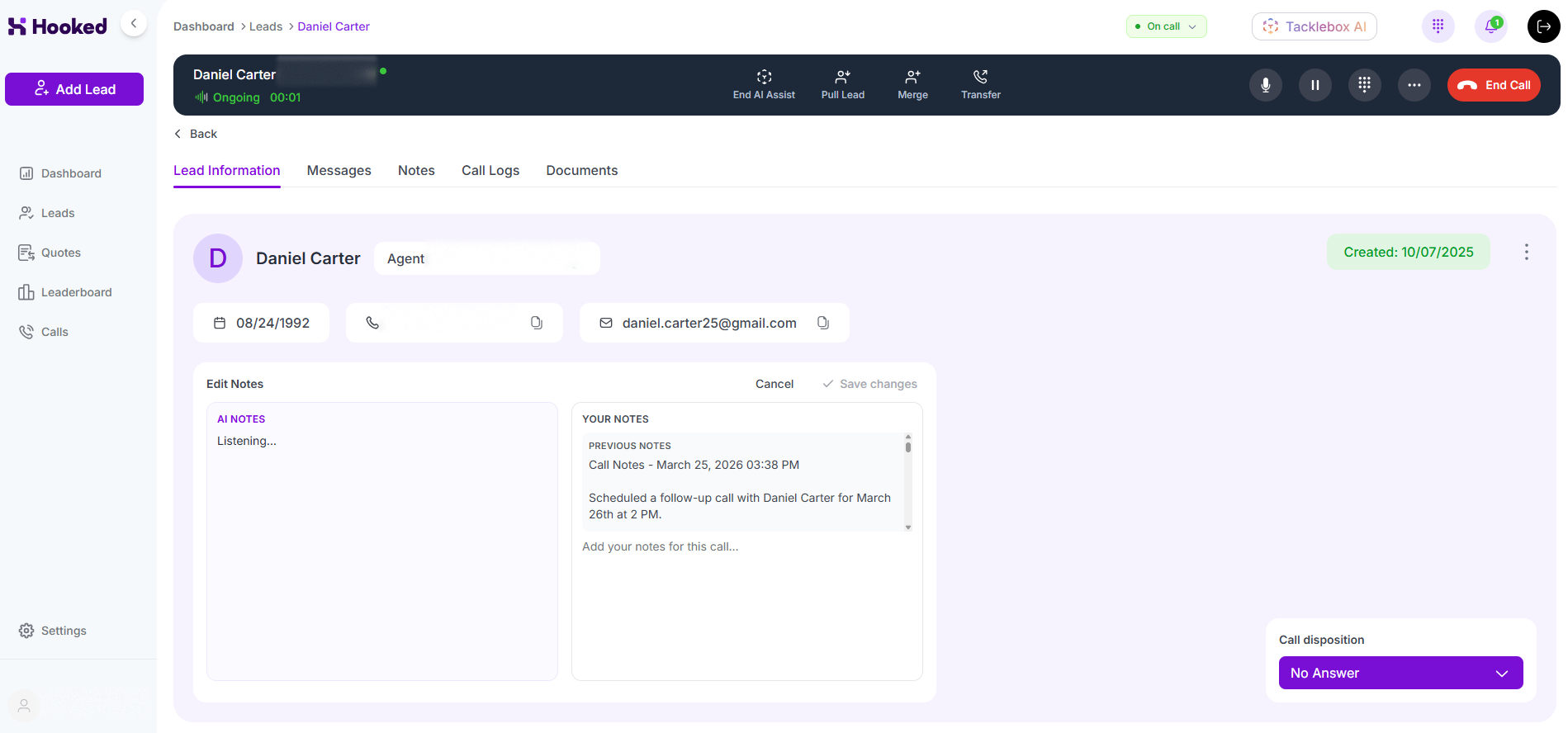
Overview
Calling customers and clients is made easy with Hooked’s user interface. There are multiple ways for you to make these calls.
Dial-Pad
No matter where you are in Hooked, you can access Hooked’s Dialpad on the top right corner of the screen next to the Logout. After clicking on the Dialpad, a Dialpad window will appear. From here you can:
Input a number via the numpad on your computer
Input a number by clicking the numbers on the dialpad
Open your Contacts list
Manual Number Input
If you’re calling a new number, you can type it manually on the Dialpad. You can either input the number through your numpad on your keyboard or by clicking the numbers on the Dialpad.
Once you’ve input the number, you can initiate the call by clicking on Call button.
Calling via Contact List
On the Dialpad, click the Contacts to switch to a contact list view.
From here, you can use the Search Bar to find a specific contact, or you can scroll down the list to find who you’d like to call.
After you find your contact, click on the Call button to start the phone call.
Calling via the Dashboard
Your Hooked Dashboard has a call history log you can use to call leads back with a click.
Navigate to the Actions column to find the Dialpad to start the phone call.
Calling via the Leads Page
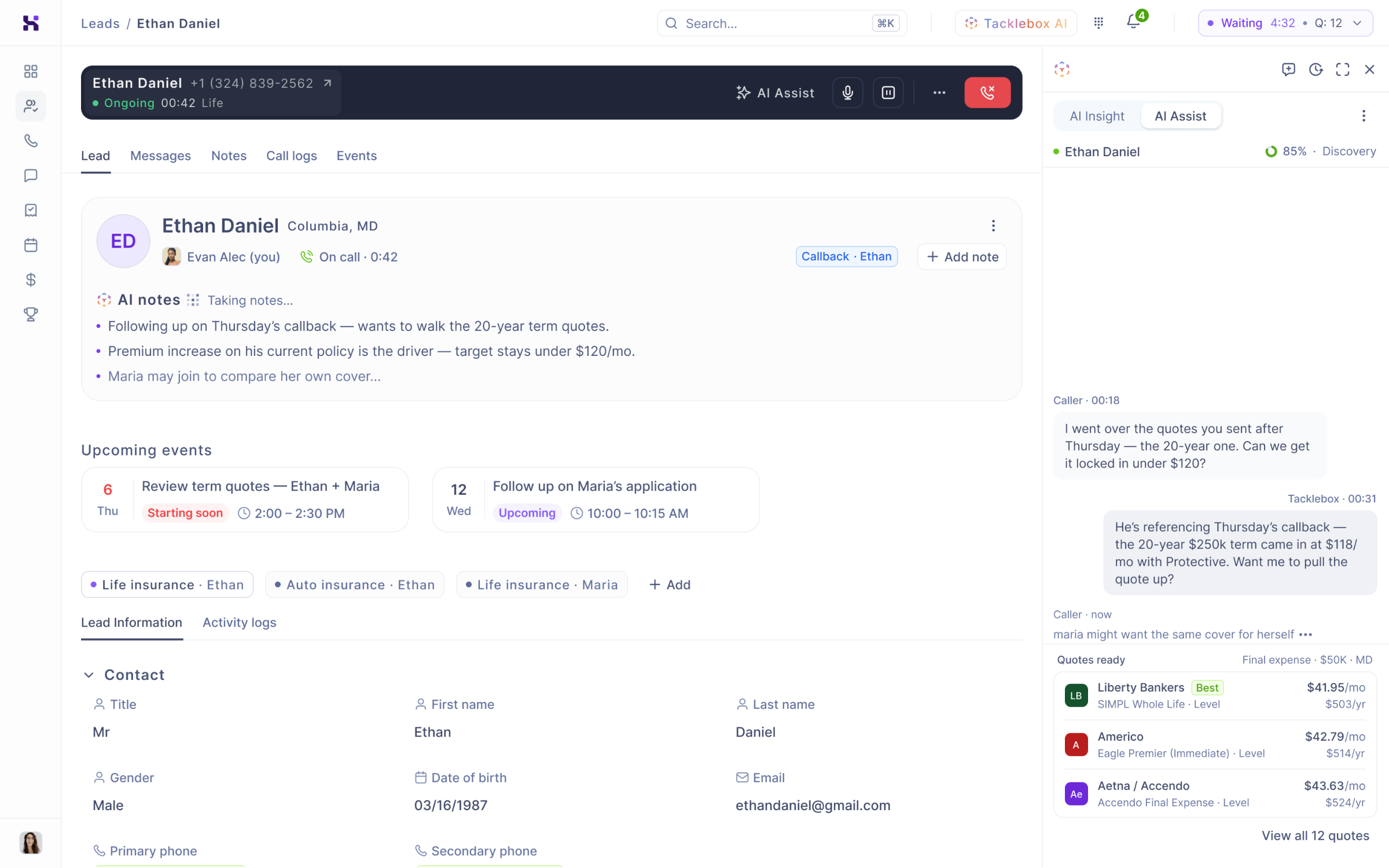
The Hooked Leads page has a profile for every customer you’ve interacted with, and you can call customers and clients on this page.
Either search for the contact using the Search Bar or scroll through the Contact List to find the desired client, then click the Call Button to start the phone call.
Calling via the Calls Page
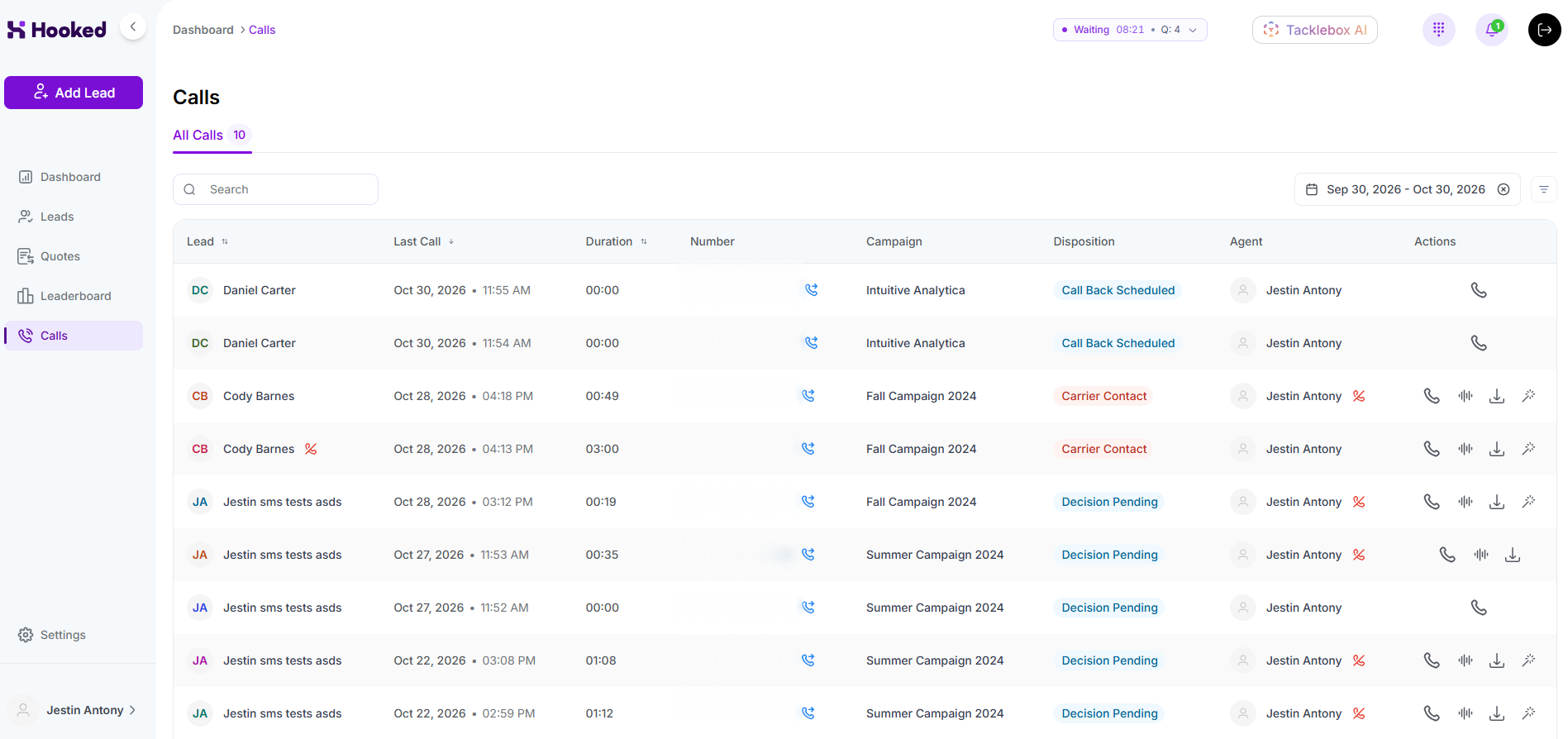
With the Hooked Calls page, you can find a detailed call log. You can call your clients from this page by clicking the Call Button located under the Actions column.
Simply search via the Search Bar or by scrolling down the Contact List.