

- Docs
- Calling
- Auto Dialing
Auto Dialing
Overview
Agency admins can adjust auto-dialing features within Hooked CRM. Auto-dialing ensures your agents don’t miss opportunities.
Finding the Auto Dialing Features
Auto-dialing features are only available to Agency Admins. You can find these options through the Campaigns tab on the left-hand side of the screen. Once you’ve reached the Campaigns Page, click on the campaign you’d like to adjust.
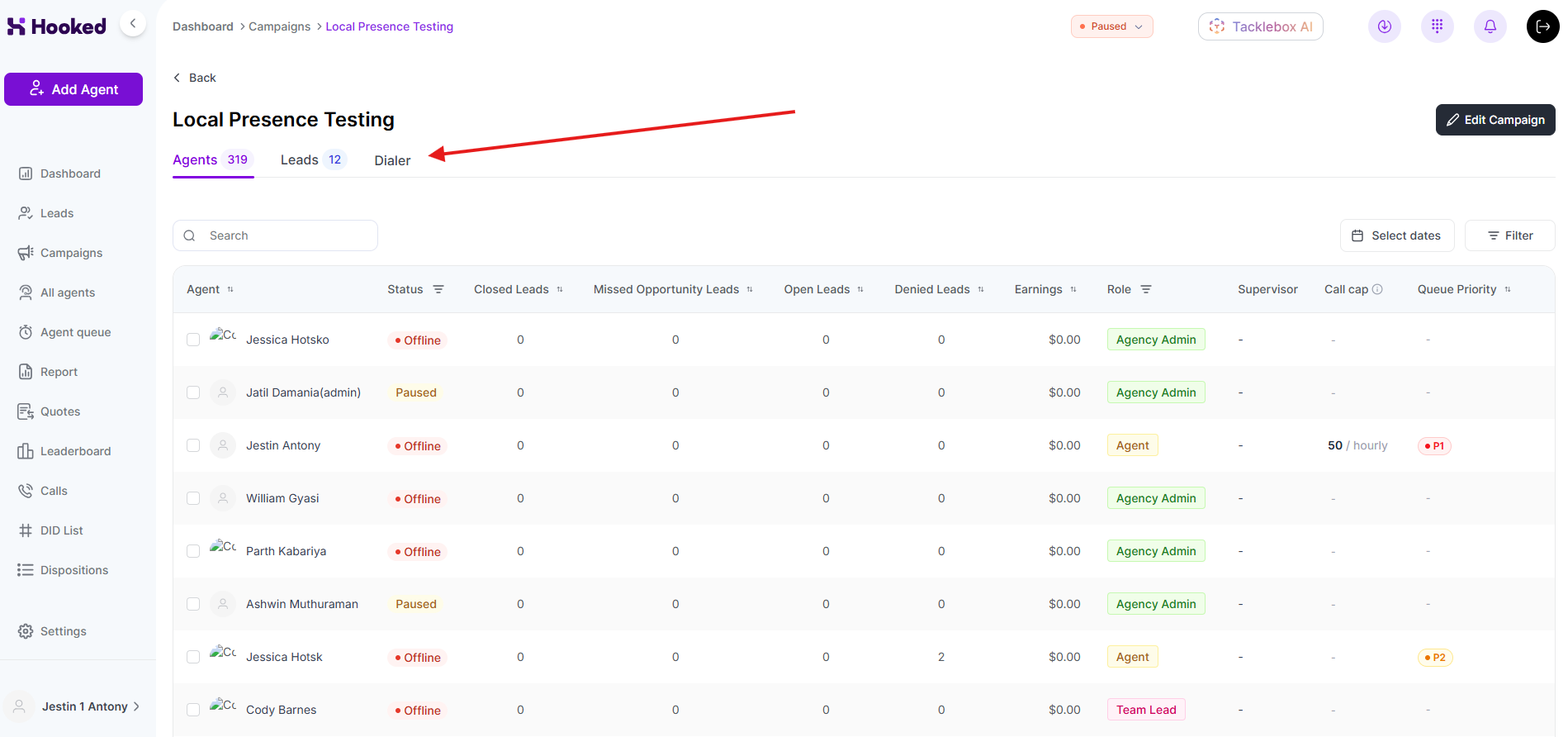
Once you’ve reached the campaign you’d like to adjust, click on Dialer, and you’ll find the auto-dialing features.
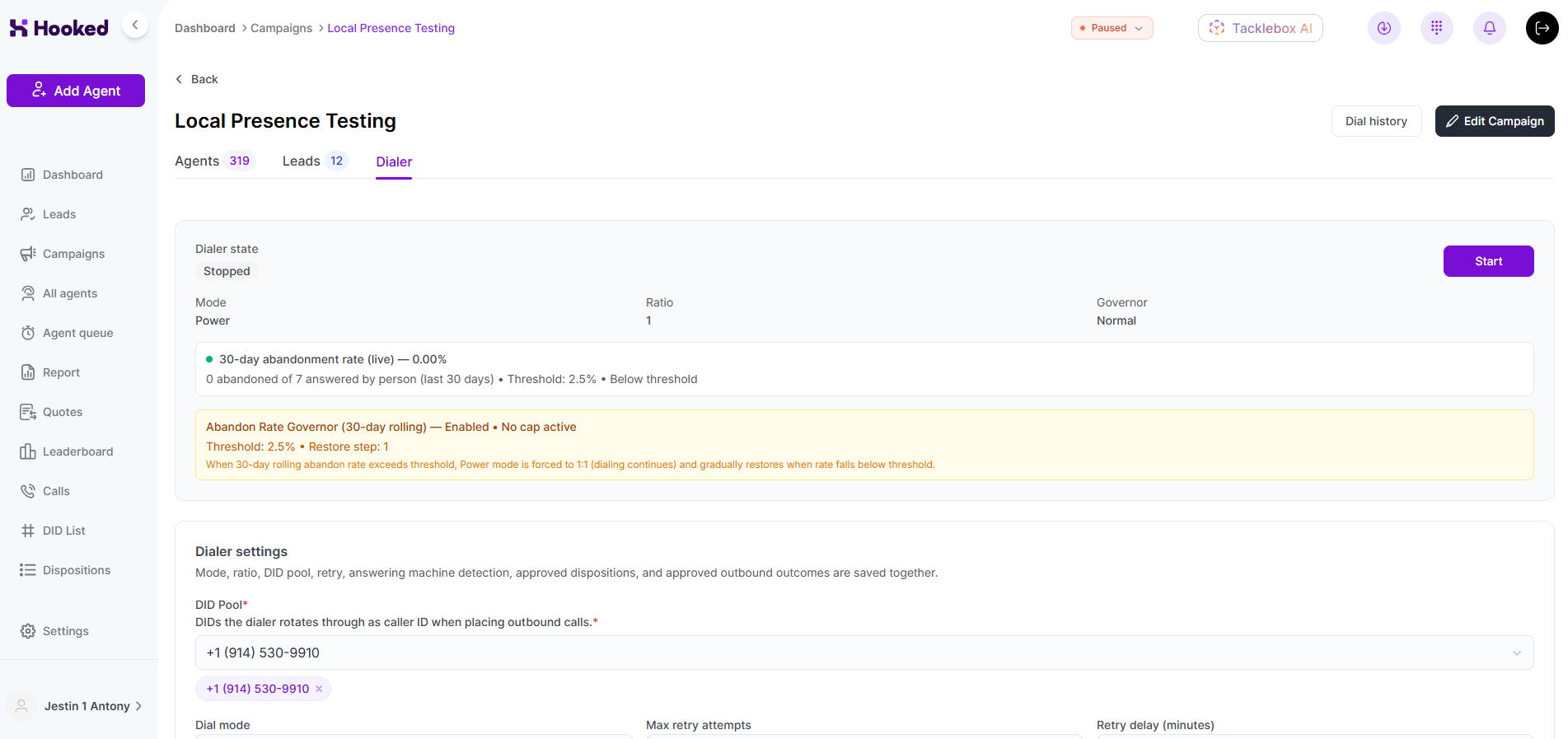
At the top of the page, it will show you the dialer’s state and status of the campaign.
Auto-dialing features are native to each campaign, so you must adjust each campaign's settings.
Dialer Settings
Your general dialer settings will include several features you can adjust to customize your auto-dialing experience. Here are the main settings you can use:
DID Pool: The list of available numbers you can use to contact your clients. Hooked will rotate through the various numbers input or choose a number based on the client’s area code.
Dial Mode: From here, you can adjust the type of auto-dialing Hooked uses for your calls.
Max Retry Attempts: The number of attempts Hooked will call a client.
Retry Delay (Minutes): The time Hooked takes between calls.
Dial Ratio: Changes the number of lines a single phone simultaneously calls.
Hooked's Dial Ratio can call up to five clients simultaneously! Check out the settings and see how it affects y our calls.
Abandon Rate Governor

To stay TCPA compliant, Hooked has an Abandon Rate Governor built in, so you’ll never have to worry about breaching the Abandon Rate Threshold. You can adjust the percentage by clicking on the number and inputting the threshold you want.
Hooked allows you to adjust the Abandon Rate Threshold from 0.01 to 3.0% and evaluates the campaign’s status over thirty days.
Safe Harbor Message
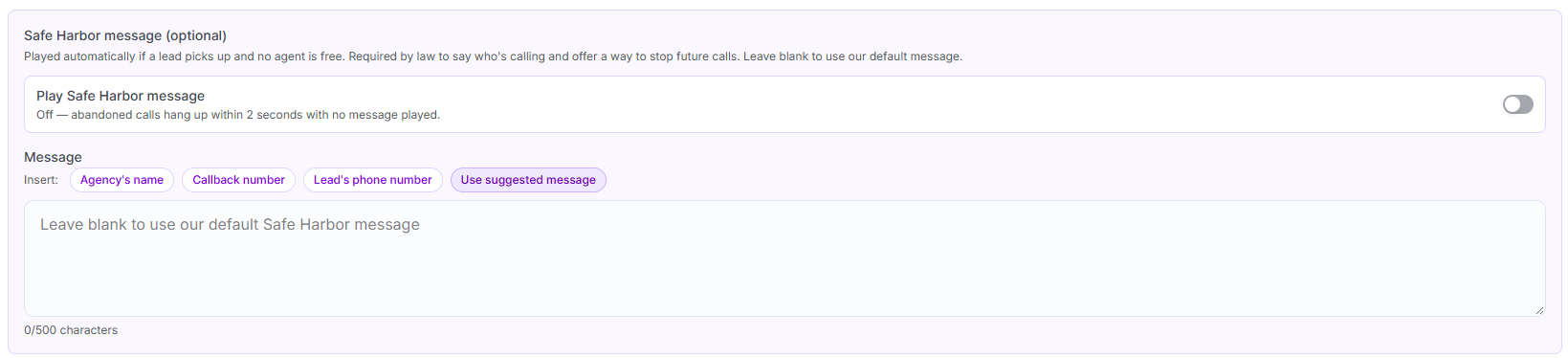
A Safe Harbor Message is an audio file that plays when a lead picks up and there is no agent available. You can adjust the message by clicking on and inputting text in the Message Box. Hooked as provided a few inserts for your convenience:
Agency’s Name
Callback Number
Lead’s Phone Number
Use Suggested Message
By clicking “Use Suggested Message”, Hooked will automatically create a compliant Safe Harbor Message.
You are required by law to say who's calling and offer a way to stop future calls within your Safe Harbor Message. Our suggested message abides by legislation, and you can adjust it to fit your needs.
Approving Dispositions for Autodial
Through the Hooked system, you can manually adjust the dispositions your auto-dialer will contact. Simply click on the various dispositions you want the auto-dialer to toggle which ones will be chosen.
You can also adjust which outbound outcomes are available for redial, but it is not required for your auto dialer.
Admins can adjust the dispositions by clicking on Dispositions on the navigation bar located on the left-hand side of the screen or Edit Campaign at the top of the page.
Saving & Starting Your Auto Dialer
Once you are finished making every adjustment for your auto dialer, you can save the information by clicking the Save settings button located at the bottom of the Dialer settings page.
If you’re satisfied with your settings, you can click on the Start button to begin auto-dialing.
You can see the auto dialer's call history by clicking Dial History at the top of the page.
Frequently Asked Questions
Why can't I adjust the auto-dialing settings?
If you aren't an agency admin, you can't adjust auto-dialing settings. However, if you are an agency admin and still cannot find the options, contact a supervisor or our support team.
What happens if we exceed the Abandonment Rate Threshold?
Hooked dials back your Dial Ratio back to 1:1 if it sees the system exceeding the percentage you've set.