

- Docs
- Tacklebox AI
- Live AI Assist
Live AI Assist
Overview
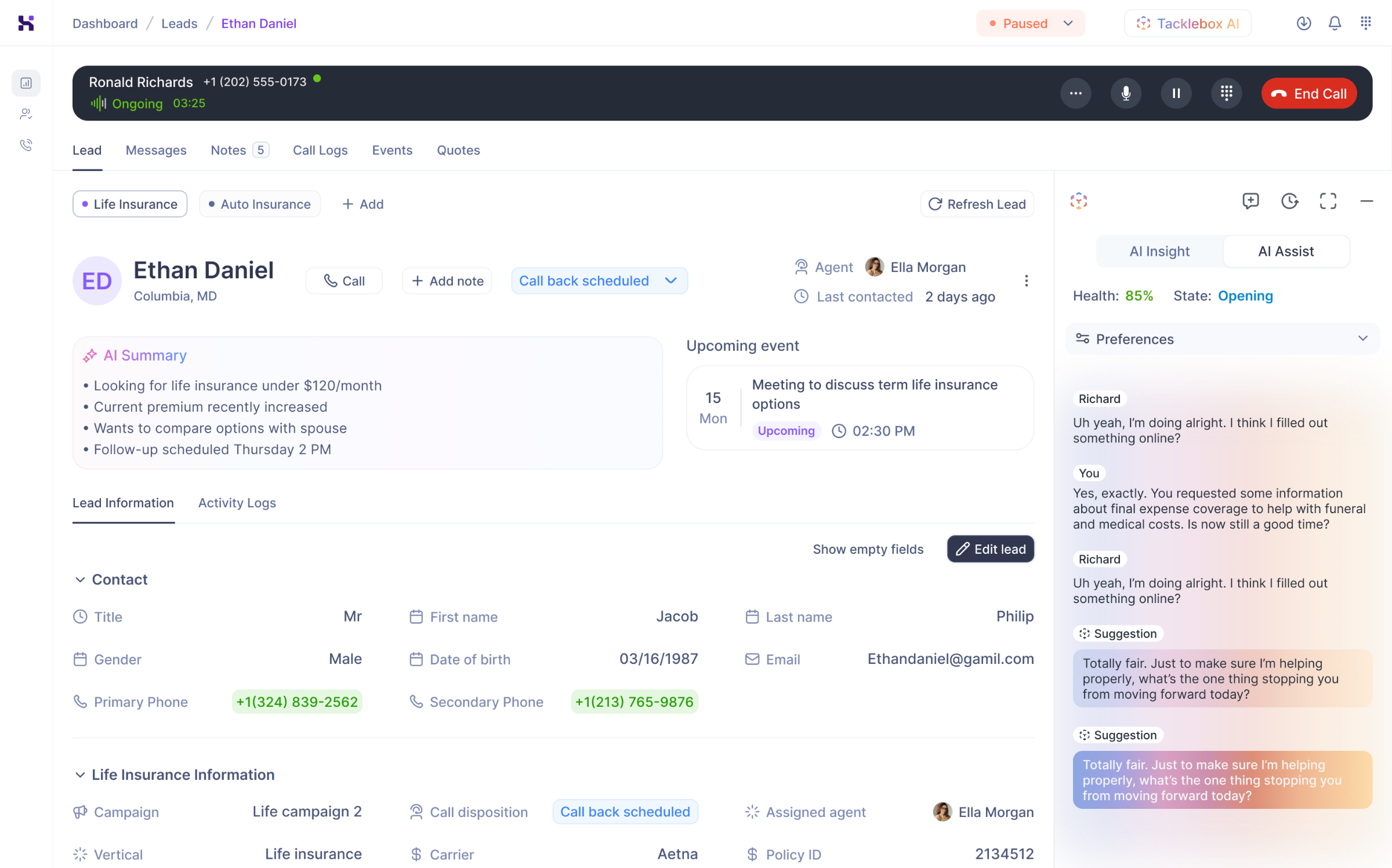
Live AI Assist is available during calls and offers suggestions to elevate your calls and user experience.
Activating Live AI Assist
When you’re on a live call, there are two ways you can activate Live AI Assist:
Click Tacklebox AI at the top of the page while you’re on a call
Click Start AI Assist on the Call Banner
The Live AI Assist chatbox will appear on the right side of the window.
Live Transcription
During Live AI Assist, you have the option to have Live Transcription occur, so you can keep track of the conversation without having to rely on your memory.
The Live Transcription can be turned on and off by opening the Preferences menu. Simply click the Toggle next to “Live Transcription” to turn this option on or off.
AI Suggestions
While you are talking with your lead, Live AI Assist will offer suggestions for you to relay to guide the conversation.
The AI Suggestions can be turned on and off by opening the Preferences menu. Simply click the Toggle next to “AI Suggestions” to turn this option on or off.
Activating AI Insights with Live AI Assist
Through the Live AI Assist page, you can access AI Insights simultaneously if you need a question about policies answered on your call.
Simply click AI Insight to utilize the AI Insights chatbox while you’re on a call or click the New Chat button to open a conversation with AI Insights.
Call Status
While you are using Live AI Assist, our AI provides valuable insights on how your call is going based on the goals your company has set. Here are the metrics Tacklebox AI is evaluating:
Call Health: Uses caller sentiment analysis to determine how well the call is going. Percentages are used to show health.
Call State: The AI determines where you are in your call workflow.
Expanding & Minimizing Your Live AI Assist
If you’d like Live AI Assist to take up the entire window, click the Expand button.
To go back to the chatbox view, click the Minimize button.
Ending Live AI Assist
You can end Live AI Assist in two ways:
Click the End AI Assist button that replaces the Start AI Assist button on the Call Banner
Click the Minus button on the chatbox