

- Docs
- Troubleshooting
- Headset Issues
Headset Issues
Overview
If you can hear your caller perfectly but they report total silence on your end, your "outbound" audio path is being blocked. These are the most common fixes if this happens to you:
Browser permissions must be changed
Your Headset is muted
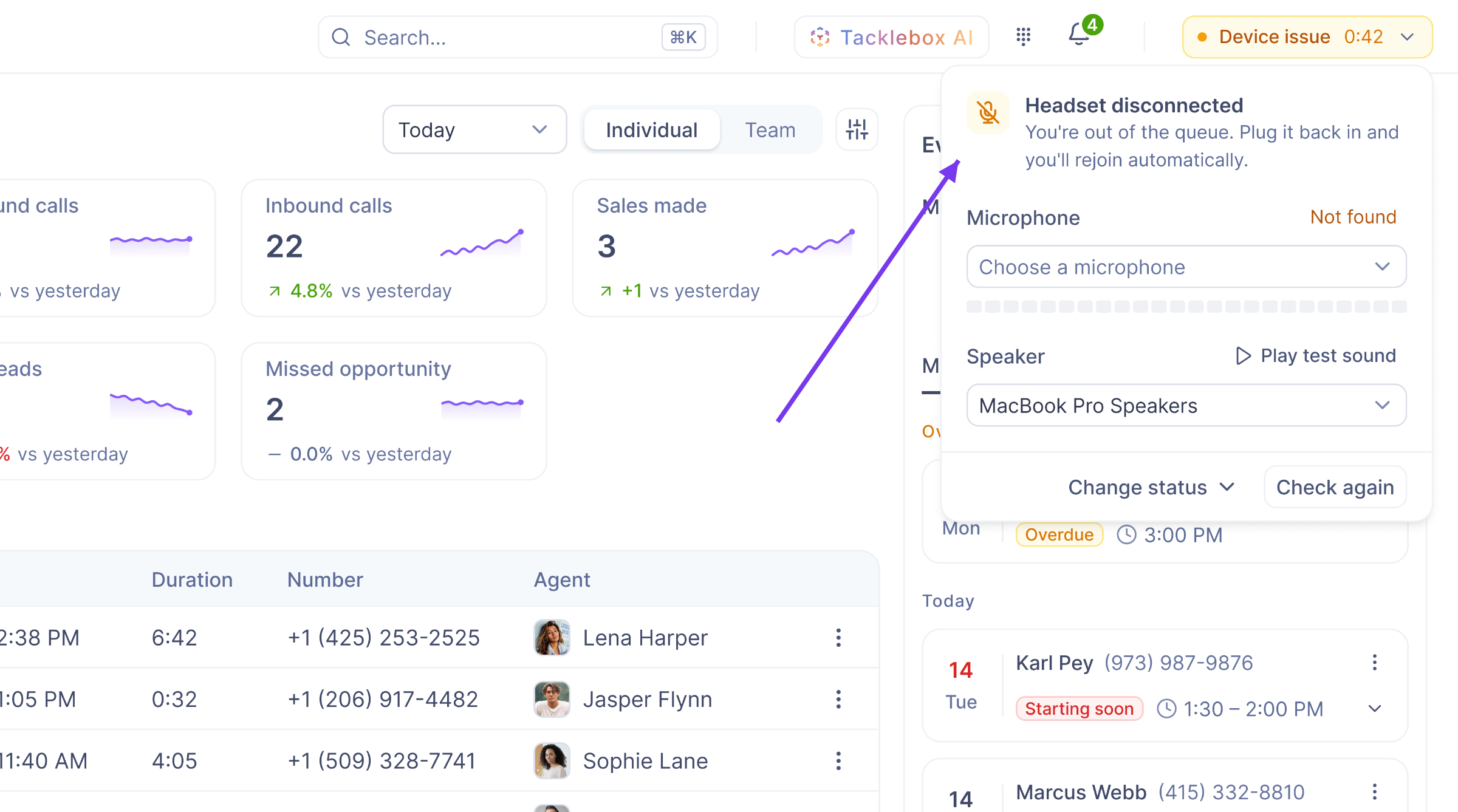
Hooked will warn you if there are any audio issues on your end. Check the top right of your screen to see how to fix your headset issues.
Follow these steps to resolve the issue:
Step 1: Follow the Instructions on Hooked
Before you switch to "Available for Calls", Hooked will run a quick audio check to test if you can make calls. If an agent passes, they'll automatically be sent to queue. However, if they fail the check, they'll be thrown into a Paused state until they can fix what's wrong. Luckily, these issues can be fixed within the Hooked Dashboard.
Here are some of the issues you can fix through Hooked and their quick fixes:
No Microphone Found: Plug in your headset or choose another microphone.
Microphone Blocked: Click the lock in the address bar, set Microphone to Allow, then check again.
We Can't Hear You: Your headset is connected, but its silent. Check its mute switch.
Once their complete, you should be ready to take calls. Try toggling to "Available for Calls" to be entered into the queue.
Step 2: Browser Permissions After System Updates
If Hooked still can't pick up your audio, here are a few other tips you can use to fix the issue.
After an update, browsers can “forget” permissions you’ve set up. Here are some common fixes you can use:
Microphone Privacy Settings
Open the Settings menu
Navigate to the Privacy & Security option in the left column
Under App Permissions, select Microphone
Ensure the Microphone access is toggled “On”
Check that your web browser is Allowed
Site Settings Icon
Click the Site Settings icon in the address bar (located next to the “Hooked” URL)
Check if the Microphone setting is toggled to Allow
If it isn’t set to Allow, click the arrow icon to the right of the Microphone permissions toggle
Site Reset
If your Site Settings are correct, click Reset Permission
Refresh the page
Click Allow when the pop-up reappears
Step 3: Set Your Headset as the Primary Device
Often, computers send audio to your headset but receive audio from another connected device (such as a built-in webcam or microphone). Here’s how to fix it:
In-Browser Settings
Locate your Settings in Chrome
Check that your Input/Microphone is set to headset and not “System Default”
Windows Sound Settings
Open your Computer Settings
Right-click the Speaker Icon in your Sound Settings
Select the headset under Input
Speak into the mic; you should see the “Test your microphone” bar moving
Step 4: Pairing Multiple Devices
If you’re using your everyday headphones as your primary headset for Hooked CRM, you will need to unpair or disable the Bluetooth on your other device. If this other device is your personal phone, simply unpair it from your Bluetooth settings or toggle off Bluetooth on your phone.
Step 5: Disable "Exclusive Mode" — Windows Only
Some apps, like Zoom or Teams, try to “take control” of your headset, preventing the Hooked dialer from using the microphone simultaneously. This is an issue that only Windows users have to worry about. Here’s how you can fix this:
Search for the Control Panel on your computer and open the application
Using the search bar, find the Sound setting
Click the Recording tab, right-click your headset, and select Properties
Use the Advanced tab
Uncheck “Allow applications to take exclusive control of this device”
Click Apply and restart your browser
Still not working?
If you’ve completed these steps and callers still can’t hear you, take a screenshot of your Sound Control Panel and send it to the Support Team.