

- Docs
- Troubleshooting
- Searching for Leads
Searching for Leads
Overview
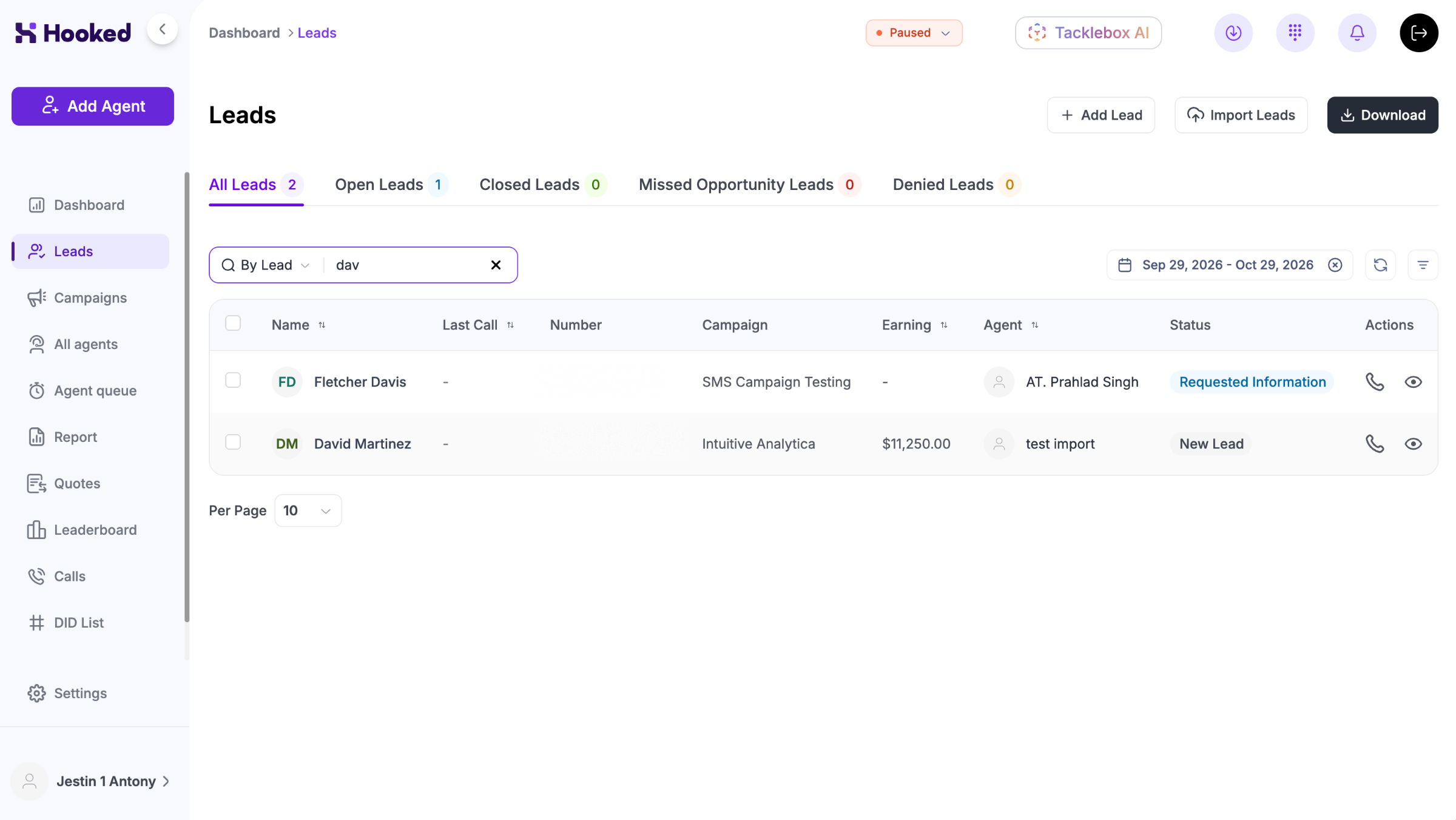
If you’re having issues finding leads, there are a few things you can do to find them within Hooked. These are the most common issues that occur when you are unable to find a lead:
Misspelling of a name or detail
Notes were not properly kept
Follow these steps to resolve your issue:
Step 1: Check Your Spelling & Information
The number one issue when finding a lead is that some piece of information is spelled incorrectly. Here are some ways to fix this issue:
Double-Check Your Spelling
The easiest fix is to double-check your spelling. If you’re looking at a specific lead or phone number, you should always ensure that it’s spelled correctly.
Currently, Hooked can’t predict search results based on the possible name.
Confirm Spelling While On Call
Another common mistake is incorrectly entering a lead’s name into the system. If you’re already working with improper data, it’s going to be even more difficult to find the lead you’re seeking.
If you have Tacklebox AI, our AI Automation should fill out the fields automatically for you. However, if you are manually inputting the information, double-check the fields to ensure everything is properly logged.
Step 2: Adjust Your Selected Dates & Filters
After ensuring your spelling is correct, the next step is to adjust the filters. By default, the Leads page will show you the data from leads within the last month, so if you’re seeking a lead outside that range, it won’t appear:
Remove the Date Filter
From the Leads page, you can either adjust the date filter or remove it entirely by clicking on the Select Dates filter.
Clicking the next to the dates will delete the range from your settings and give you a list of every lead in your system.
Clicking on the dates will open up the Calendar, and you can adjust the visible leads in a few ways:
Manually selecting the requested dates. Clicking a date defaults it as the start date, and the second click fills in the end date. After selecting the dates, click Apply Filter.
Choosing a pre-selected range (This Month, Last Month, Last Week, and This Week)
Depending on how many leads you've created or contacted, it might take a few seconds for the list to load and filter through all the data.
Still not working?
If you’ve completed these steps and callers still can’t hear you, take a screenshot of your Leads Page and send it to the Support Team.