

- Docs
- Troubleshooting
- Entering Call Queues
Entering Call Queues
Overview
Entering and exiting call queues within Hooked CRM was made with the customer relationship in mind. However, there can be some confusion if you’re not used to the workflow. Here are a few of the issues we’ve seen regarding call queues:
Getting Into the Call Queue
Once you’ve Logged In to Hooked, you’ll need to enter the call queue to start receiving calls.
Locate your Status settings at the top right of the Hooked application, as indicated by your profile picture and name
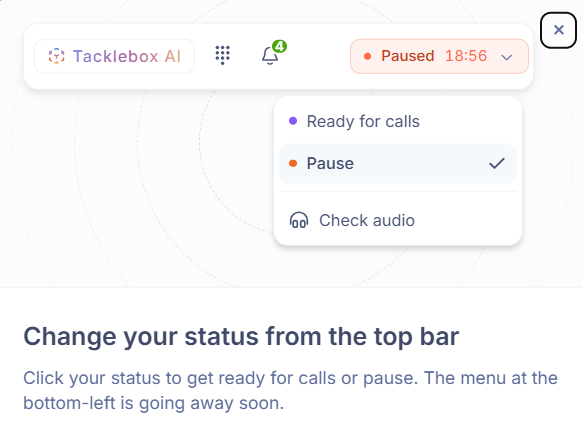
Click the Paused status at the top of the Hooked application
Select Ready for Calls to enter the call queue
You will not start receiving calls until you enter the call queue, so make sure your Status is correct.
Finishing Calls & Re-Entering the Call Queue
After you’re finished a call, you’ll enter a Wrap-Up phase. This was created so you have the time to update notes and confer with managers if necessary. However, you will need to end the Wrap-Up phase before you re-enter the call queue:
Locate the Call Banner at the top of the Hooked application
Click Finish Wrap-Up to be re-entered in the call queue
Logging Out, Pausing Calls & Re-Entering the Call Queue
If you’ve logged out or paused calls in the Hooked application, you will exit the call queue and must re-enter it via the Status settings.
Unfortunately, if you exit the queue for whatever reason, you will be placed at the end.
Missing Calls & Re-Entering the Call Queue
Through Hooked CRM, you must respond to calls within 10 seconds. Unfortunately, if you miss the window, the system will place you at the end of the queue.
That’s why we recommend you remain at your computer if you are in the call queue.
Wipe Your App Data & Hard Reload
If your Chrome tab is stuck or behaving strangely, it could be preventing you from entering the call queue. We recommend either hard reloading your site or clearing your site data. Here's how you can do both:
Hard Reloading
Hard reloading bypasses the cache for the page you're on. When you're on the HookedCRM page, use these shortcuts and check your page again.
Windows / Linux: Ctrl + Shift + R
Mac: Cmd + Shift + R
If it's not working, you can open up the DevTools by tapping F12 or choosing Inspect when you right-click on the screen. In the toolbar, choose Empty Cache and Hard Reload.
Clearing App Data
You can clear the cookies and cached data without touching any other page within Chrome by following these instructions:
Click on the padlock or info icon on the left of the address bar.
Choose Site Settings or Cookies and site data.
Click Delete data or Clear data, then confirm.
Reload the tab.
If your problem isn't tied to one site, you must clear the site data for all your browser. Here's how you can do that:
Open Chrome's menu via the top right menu, going to More tools and selecting Clear browser data...
Set the time range to All time.
Check Cookies and other site data and Cached images and files.
Click Clear data, then restart Chrome.
You will be signed out of Hooked, so you must re-enter your log in information.
Still Having Issues?
If you were forcefully ejected from the queue, contact your administrator or supervisor. They can reposition you back to where you left off. However, if this is a consistent issue you’re facing, contact our Support Team, and we can help you find a solution.