

- Docs
- Troubleshooting
- Importing Leads
Importing Leads
Overview
If you’re importing leads from various services or transferring data from your previous CRM, follow these key steps for a seamless transition.
Importing Your Leads
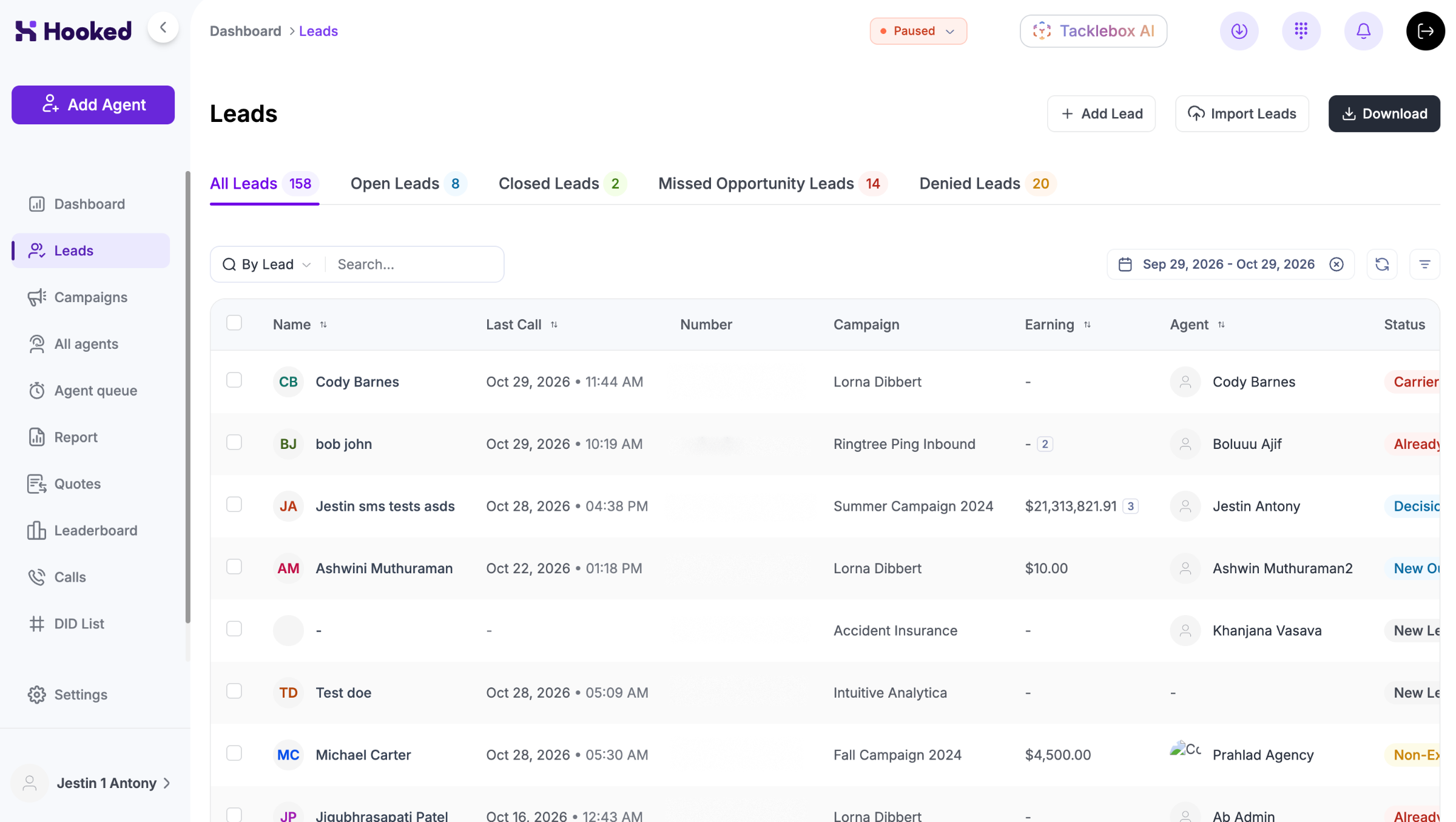
You can import your leads through the Leads Page on Hooked CRM. Here are the steps you can follow:
Click on Import Leads at the top right of the Leads Page.
Select the campaign where the leads will be imported.
Click on Download the CSV template.
Format your spreadsheet to emulate the CSV template
Upload the CSV file to Hooked by clicking on Click to upload or dragging the file onto the page.
If you don’t follow the CSV template, you will experience several errors when importing leads. We highly recommend following the procedure if you don’t want to re-upload your files.
Adjusting Your Columns
Our system will automatically map out columns of uploaded CSV files with AI. However, we recommend reviewing the data to ensure it’s mapped correctly. If you have unusual data or missing fields, reviewing the columns can prevent re-uploads or duplicate leads.
Fixing the Warning
Hooked CRM will warn you if your import looks off or needs further adjustments. It color-codes the leads to let you know if the system can read through the upload:
Yellow: Hooked can use the lead information, but it may need some minor adjustments.
Red: The lead information won’t work in the system.
The system will let you know exactly what needs to be fixed before uploading, and you'll be able to adjust them directly on the page.
Still Having Issues?
Take a screenshot of the newly imported leads or the warning you received and contact our Support Team. We’ll help you as soon as we can.