

- Docs
- Get started
- Quoting Page
Quoting Page
Overview
Hooked was built with insurance sales in mind. To assist the process as much as possible, we’ve created a quoting tool that gives you an estimated monthly premium for each policy the client is eligible for. Here’s how to use the Quoting Page:
Navigating to the Quoting Page
You can find the Quoting Page by using the navigation bar on the right side of the screen. Click on Quotes to be taken to the page.
Choosing the Coverage Type & Carriers
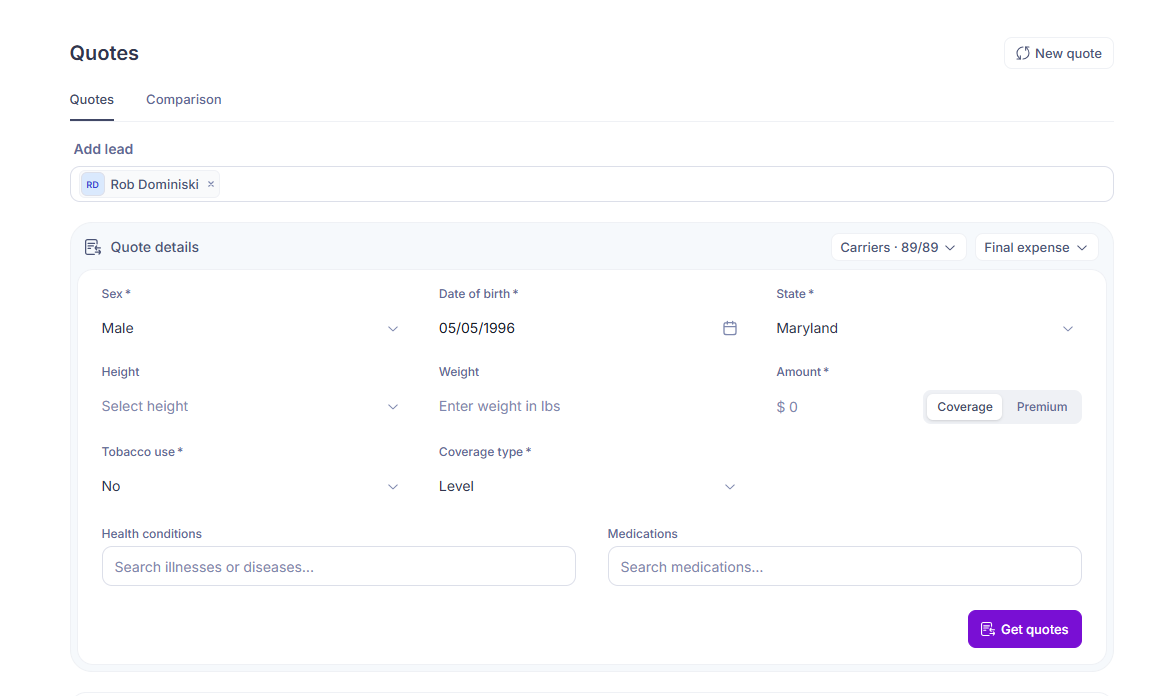
Before you begin using the Quoting Tool, you should choose what kind of coverage your client needs. At the top right of the Quote Details window, you can click on “Carriers” to choose the insurance companies you’d like to receive quotes from.
You can choose the type of insurance the client is looking for by clicking on “Final Expense”. Currently, you can choose from final expense, IUL, and term life insurance options.
How to Use the Quoting Tool
When you reach the Quoting Page, you’ll be greeted with the Quote Details window. Within the window, you must fill out a few fields to get a quote. Here are the required fields:
Sex
Date of Birth
State
Tobacco Use
Amount of Coverage Desired or Monthly Premium Desired
Coverage Type
Some additional fields (not required) will help the Quoting Tool determine what works best for your client:
Weight
Height
Health Conditions
Medications
Once you’ve input the information, click on Get Quotes to see the policies available to your client.
Automatic Quoting with Your CRM Information
Hooked CRM directly links our quoting tool with our CRM, so you can grab a quote by selecting the client in the quoting tool.
Under the “Add Lead” heading, you’ll find a Search Bar where you can type your lead’s name. Once you find the lead, click their name for the information to populate.
Your CRM must have all the information filled out for this feature to work. Unfortunately, if the information was entered incorrectly, you won't have an accurate quote for that lead.
Starting an Application
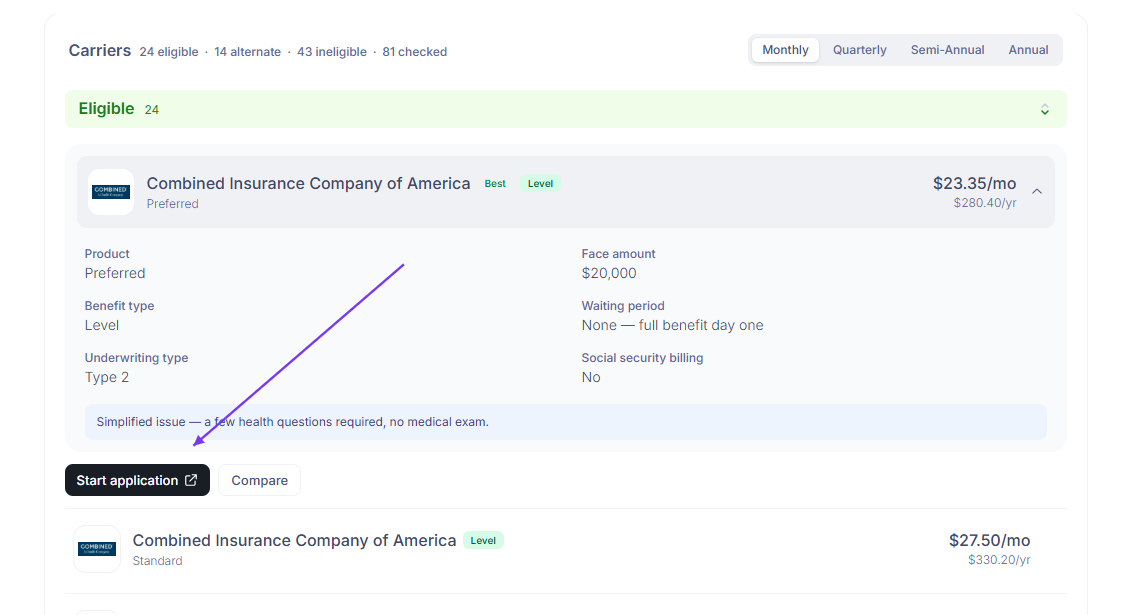
Once you’ve found the best policy for your client, you can start the application via the insurance company’s website.
Simply click on the policy that works for your client to see the full details, and click “Start Application” to open a new window that takes you to the application.
Comparing Policies
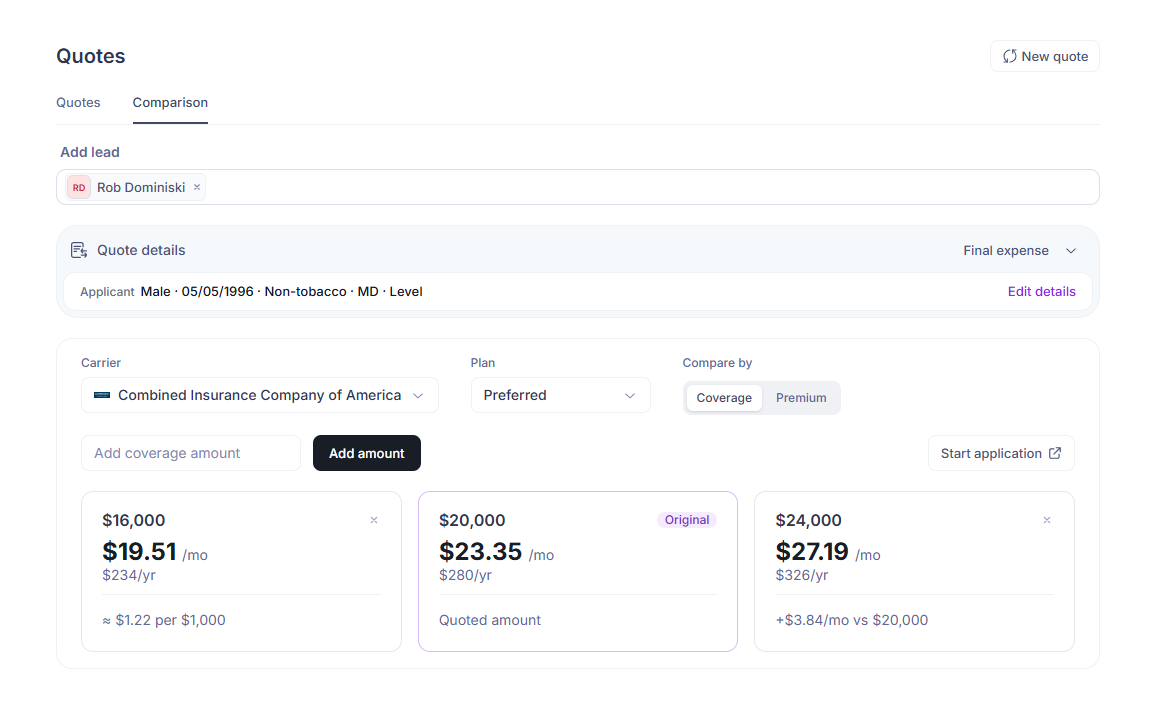
If your clients aren’t satisfied with their available policies, Hooked CRM offers a built-in Comparison Tool. This adjusts the current policy with different coverage amounts and premiums.
You’ll find the Comparison Tool by clicking “Comparison” at the top of the page or by choosing “Compare” next to the “Start Application” button when you select a policy.
From here, you can change the carrier, plan, and how the system compares policies. If you are comparing by coverage, you can adjust the coverage amount, but if you compare by premium, you can adjust by the client’s monthly budget.
The Comparison Tool only compares policies within the same company. It does not compare policies from different companies.
Refreshing the Quoting Tool
You can reset the Quoting Tool by clicking on New Quote at the top right of the page. This will erase all the information originally entered.
Tacklebox AI’s Advanced Quoting Tool
If you are subscribed to Tacklebox AI, you’ll have access to the Live AI Assist features. When active, Tacklebox AI activates Advanced Quoting, which prompts agents to ask a series of questions that guide them into filling out the fields necessary to get a quote.
Check the Live AI Assist Help & Support page to see how Tacklebox helps on all your calls.