

- Docs
- Get started
- Calendar
Calendar
Overview
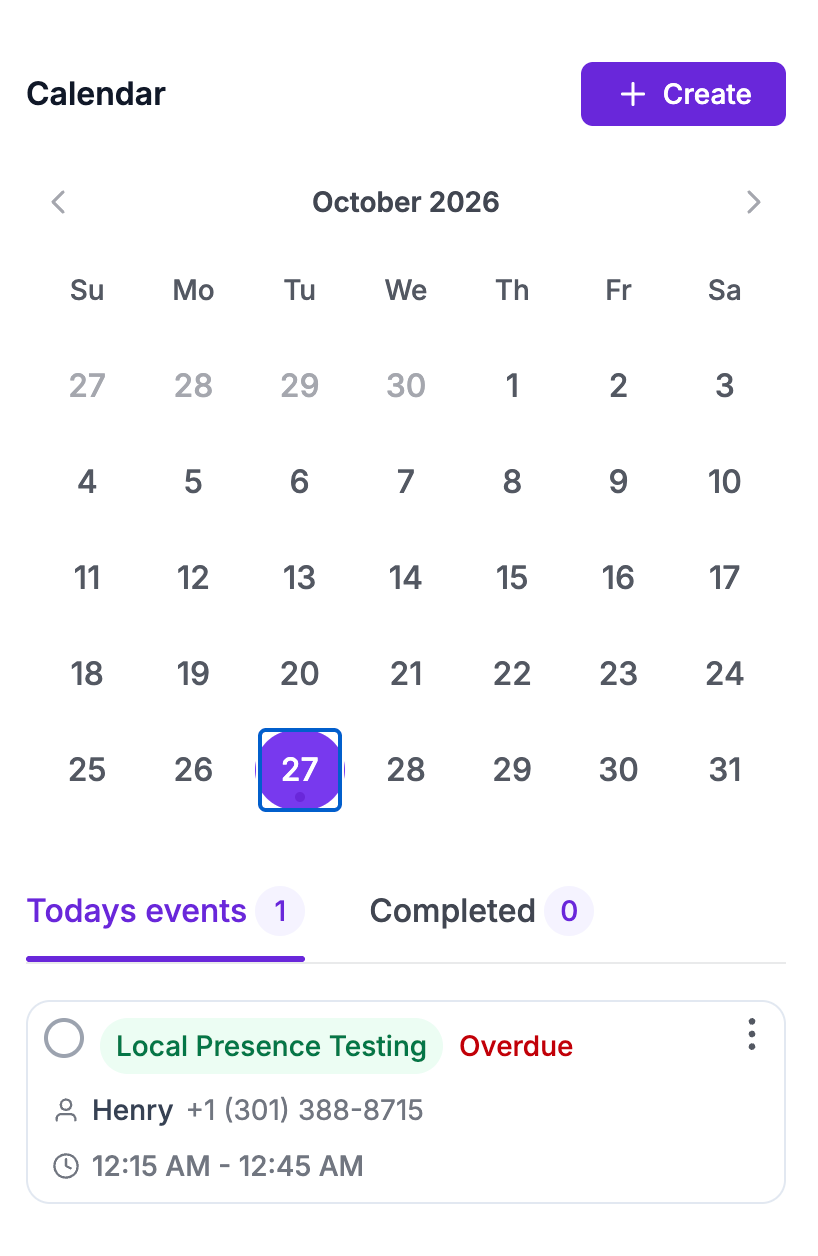
The Hooked CRM Calendar was made to give you access to your schedule at a moment's notice. You can create new events, track your upcoming events, and review previous events. Here's how you can navigate your Hooked CRM Calendar:
Navigating Your Calendar
By default, the Calendar shows you your current and upcoming events. Clicking on different dates will show you the events scheduled for that day. You can toggle the month by clicking the Left and Right arrows next to the current month and year.
If your Calendar has a dot under the date, that indicates a corresponding event on that day. You can see your schedule by clicking on the corresponding date.
Creating Events on Your Calendar
You can create an event by clicking Create. From here, you can adjust the date, event name, and duration. You will also have the option to add a lead to the event and write some notes for yourself. To add it to the calendar, just click on Save event.
Changing Events on Your Calendar
If you need to make changes to an event, navigate to the events tab below the Calendar, click the three dots next to the event name, and select Edit. This will open the event editing window.
Completing a Task on Your Calendar
Clicking the Circle next to the event name will cause it to move from “Today’s events” to the “Completed” list.
Using Tacklebox AI to Manage Your Calendar
Alternatively, you can use Tacklebox AI to automatically add, delete, and adjust events to your calendar.
When Tacklebox is activated during your call, the AI will read through the transcript and manage your calendar for you.