

- Docs
- Tacklebox AI
- AI Automation
AI Automation
Overview
With AI Automation, your CRM updates itself, so your call representatives and agents can stay focused on what they do best.
Activating AI Automation in Your Calls
AI Automation can be turned on and off by opening the Preferences menu while you’re on a call. Simply click the Toggle next to “AI Auto Fill” to turn this option on or off.
What Fields Get Auto Populated?
When AI Automation is activated, it will start automatically filling in information from the call. Here’s what you can expect to get populated:
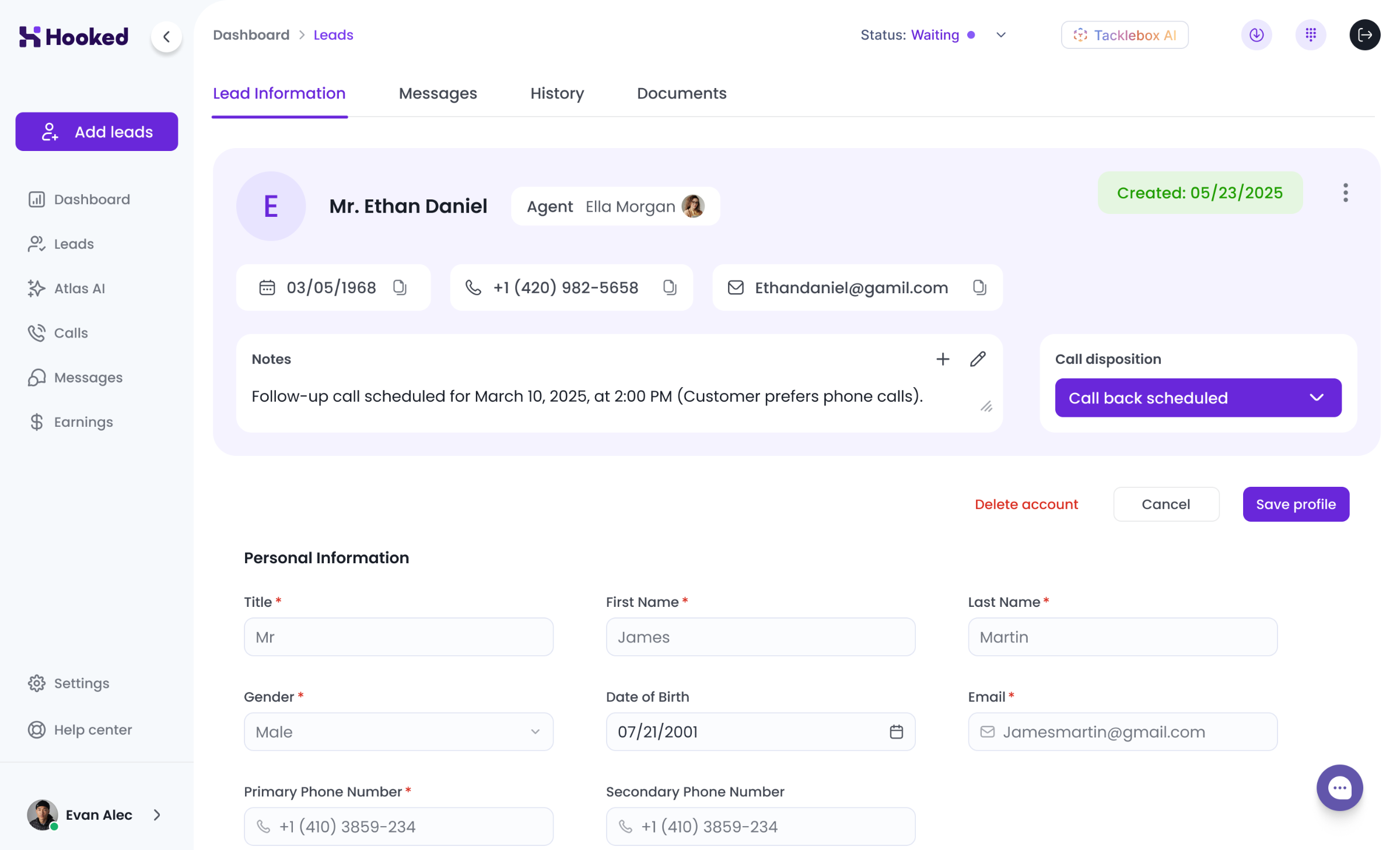
Lead Information: your client’s name, address, phone number, date of birth, and email
Notes: AI-generated notes will appear on the leads page after your call
Events: any future events that were planned on the call will be added to your schedule with confirmation from the agent or call representative
Call Disposition: how you left the call will be recorded and added to the lead profile with confirmation from the agent or call representative
Turning Off AI Automation
To turn off AI Automation, open the Preferences tab at the top of the Live AI Assist chatbox. From there, you can switch the Toggle next to AI Auto Fill to turn it off.
Frequently Asked Questions
What happens if the AI doesn't capture information correctly?
You can manually adjust the information on the leads page and add your additional notes as needed. You may want to change your Preferences before doing so.